
Rules — Categorize Future Imports Automatically
Categorize Future Imports Automatically
Section titled “Categorize Future Imports Automatically”Rules teach Acclo IQ how to recognize transaction descriptions. Once a rule exists, matching transactions from future CSV imports and bank syncs receive the merchant, category, and subcategory you chose.
The quickest way to start is from a transaction you have already categorized:
- Open the transaction on the Transactions page.
- Choose Rule.
- Review the suggested match, merchant, and category.
- Choose Create Rule.
Future matching transactions will arrive categorized. Existing transactions do not change until you choose Re-run All.
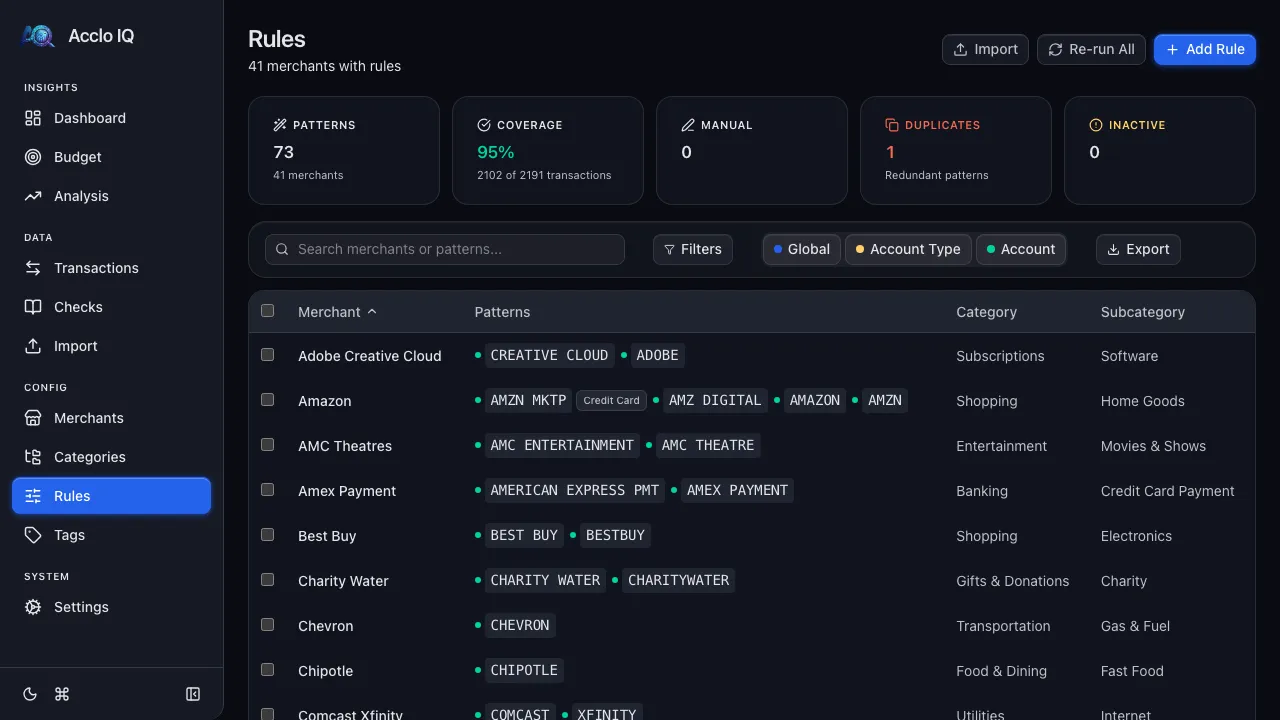
Create a Rule from the Rules Page
Section titled “Create a Rule from the Rules Page”Use Add Rule when you want to define the behavior directly:
- Enter a transaction match, such as
TRADER JOE. - Enter or select the merchant name.
- Choose the category and subcategory.
- Choose where the rule applies: everywhere, one account type, or one account.
- Choose Check conflicts to review possible overlaps with existing rules.
- Choose Create Rule.
Simple text is enough for most merchants. A match such as STARBUCKS recognizes descriptions like “STARBUCKS #1234” and “STARBUCKS STORE 567.” You only need the advanced pattern features when descriptions vary in a way simple text cannot handle.
If no rule matches an imported transaction, it remains Uncategorized so you can review it.
See How Much Work Rules Save
Section titled “See How Much Work Rules Save”Five summary cards at the top of the Rules page show how well your rules cover your history:
| Card | What it tells you |
|---|---|
| Patterns | Total number of rule patterns across all merchants |
| Coverage | Share of transactions recognized by rules |
| Manual | Transactions whose categories you changed by hand; click to review them |
| Duplicates | Redundant matches; click to filter the list when any exist |
| Inactive | Disabled matches; click to filter the list when any exist |
Coverage is the clearest measure of progress: as you add useful rules, fewer new transactions need manual categorization.
Manage Existing Rules
Section titled “Manage Existing Rules”Each row in the Rules table represents one merchant and shows its transaction matches, category, and subcategory. Click a row to open its detail panel.
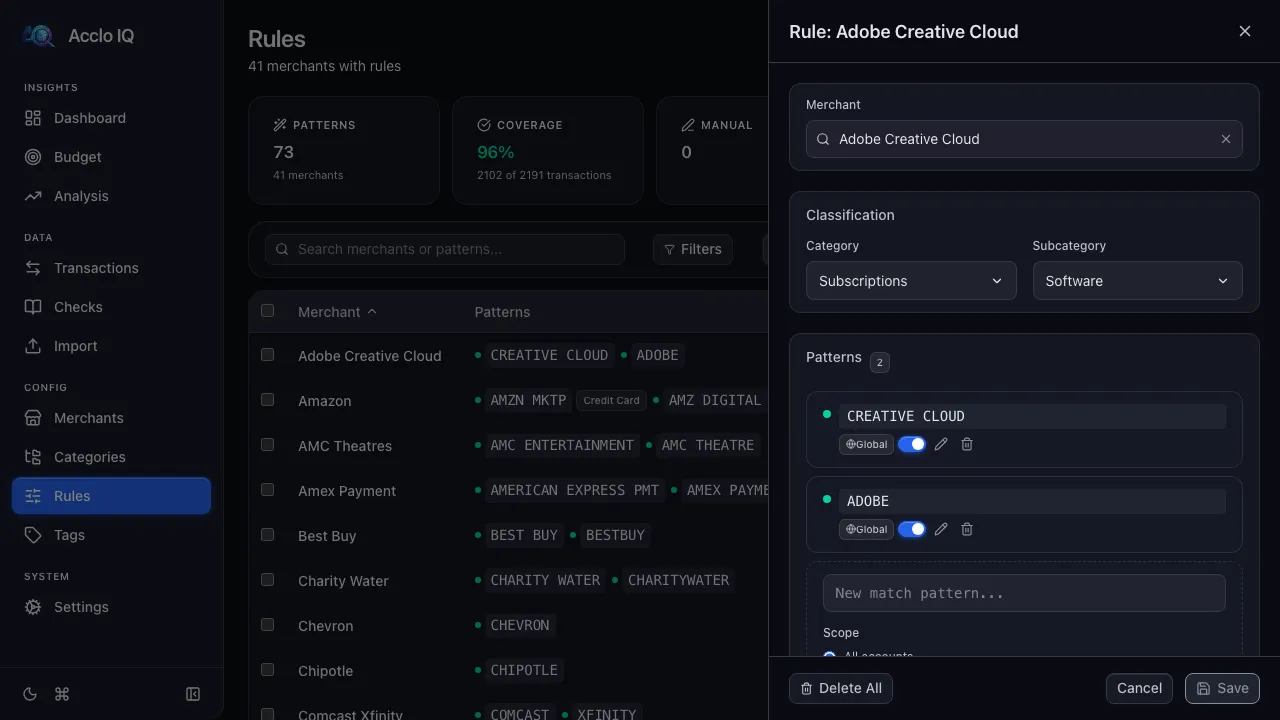
From the detail panel you can:
- Rename or select a different merchant
- Change the category and subcategory
- Add another transaction match for the merchant
- Edit a match or change where it applies
- Disable a match without deleting it
- Delete a match you no longer need
Disabled matches remain visible but do not categorize transactions.
Apply Changes to Existing Transactions
Section titled “Apply Changes to Existing Transactions”Choose Re-run All after adding or changing rules when you want to recategorize your existing history. Acclo IQ shows a confirmation first and reports how many transactions changed.
Transactions you categorized manually are preserved. Re-running rules only updates transactions that have not been manually overridden.
Move Rules Between Devices or Backups
Section titled “Move Rules Between Devices or Backups”Choose Export to download your merchants, matches, categories, and scopes in a rules.json file.
Choose Import to load a rules file. Before anything changes, the preview separates:
- New — merchants that will be added
- Updated — existing merchants whose rules will change
- Unchanged — merchants that already match the file
Review the preview, then choose Import N rules to confirm.
Advanced Reference: Match Patterns
Section titled “Advanced Reference: Match Patterns”Transaction matches are case-insensitive regular expressions. Regular expressions are useful when a description contains changing store numbers, dates, or reference codes, but simple text is safer and easier to maintain for most rules.
Before saving, Acclo IQ checks that a pattern:
- Is valid and no more than 200 characters
- Does not contain unsafe nested or chained repetitions
- Runs quickly against recent transaction descriptions
- Does not duplicate or unexpectedly overlap an existing rule
Use Check conflicts before creating or editing a match. It reports exact duplicates, cases where one match contains another, and overlaps found in your real transaction descriptions.
The dot beside each match summarizes its performance against recent transactions:
- Green — fast (under 50 ms)
- Orange — moderate (50–199 ms)
- Red — slow (200 ms or more; simplify the pattern)
- Gray — inactive
Advanced Reference: Scope and Precedence
Section titled “Advanced Reference: Scope and Precedence”Scope lets the same description behave differently depending on the account. Badges beside each match show its scope:
- Global — no badge; applies to every account
- Account type — applies to all accounts of one type, such as Credit Card
- Account — applies only to one selected account
When more than one rule matches, Acclo IQ chooses the most specific applicable scope:
- A rule for the individual account
- A rule for that account type
- A global rule
Within the same scope, higher-priority matches are considered first, followed by longer matches. This lets a precise rule win over a broad fallback. Check-register matches take precedence when you re-run rules.
Use the Global, Account Type, and Account controls in the toolbar to show or hide each scope in the table.
- Create rules from real transactions when possible; the suggested match gives you a useful starting point.
- Start with a recognizable merchant phrase instead of a complex pattern.
- Review Coverage to see whether new imports will need less cleanup.
- Review Duplicates periodically so two merchants do not compete for the same description.
- Use Re-run All only when you want rule changes applied to older transactions too.
Related Guides
Section titled “Related Guides”- Categories — manage the categories that rules assign
- Transactions — create rules from transactions and review the results
- CSV Import — categorize transactions as they are imported
- Format Profiles — control how CSV columns are read