
Licensing — Activate Pro & Manage Devices
Upgrade Page
Section titled “Upgrade Page”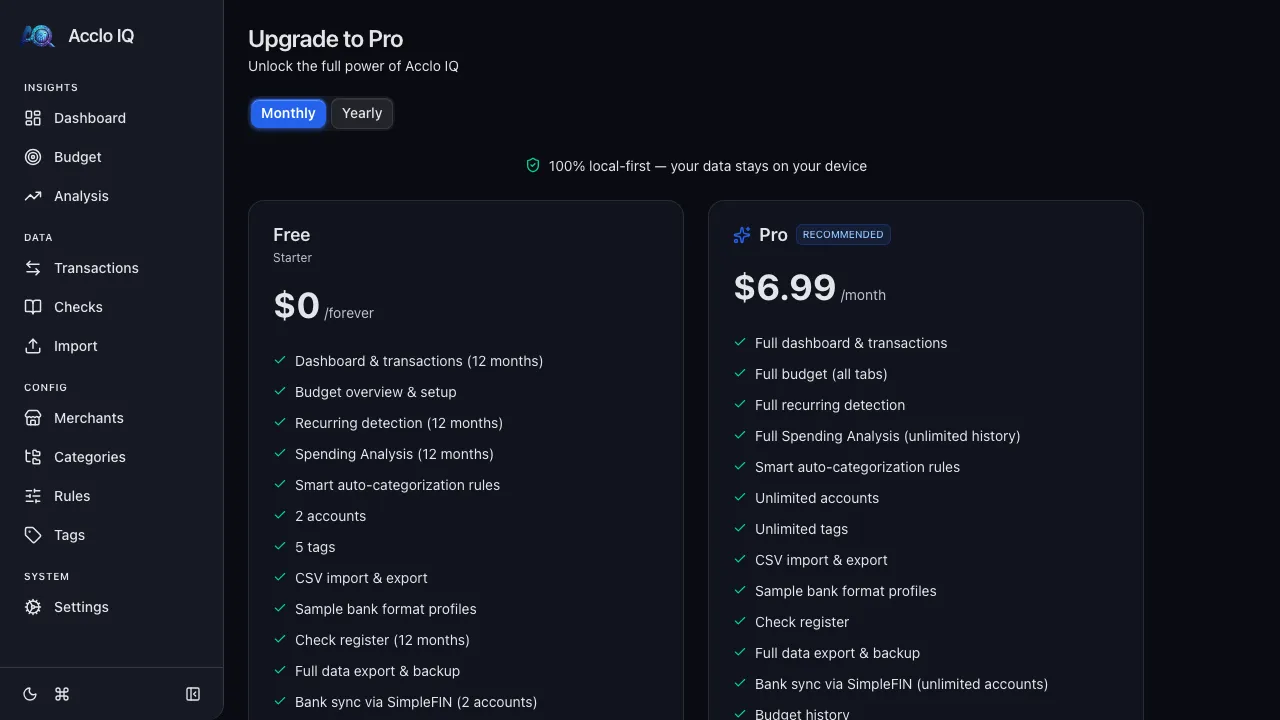
The Upgrade page shows the Free and Pro tiers side by side, with monthly and annual billing options. Use it to:
- Compare account, tag, history, sync, receipt, and analysis limits
- Start checkout for a new Pro subscription
- Paste a license key if you already purchased
- Return to Settings after activation
If all device slots are already in use, the activation form offers a Manage devices action so you can deactivate an old device and retry activation.
Activating Your License
Section titled “Activating Your License”After purchasing a Pro subscription, you receive a license key by email.
- Open Acclo IQ on any device (desktop or browser)
- Go to the Upgrade page (click Upgrade to Pro in the sidebar or on the License tab)
- Under Already purchased?, paste your license key and click Activate
- The app confirms activation and shows your Pro status
Your license supports up to 3 devices simultaneously.
Device Management
Section titled “Device Management”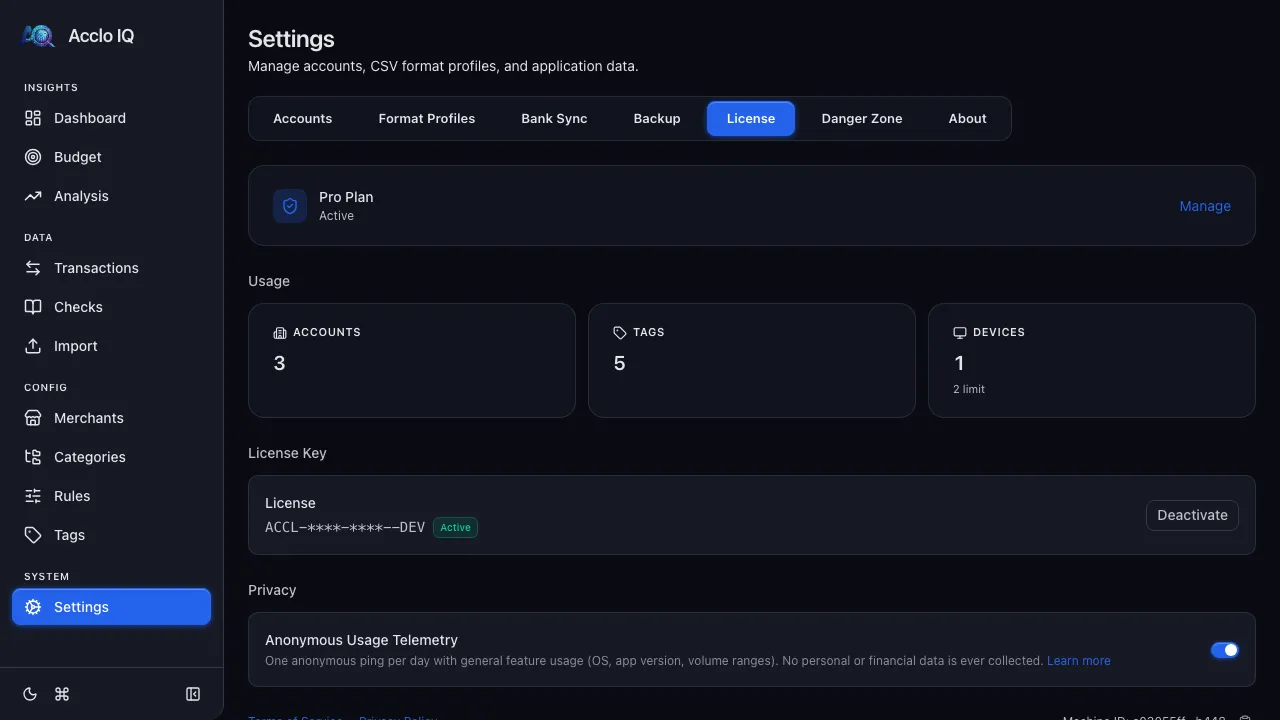
Viewing Linked Devices
Section titled “Viewing Linked Devices”Each device is identified by its Machine ID — a truncated fingerprint shown at the bottom of the License tab as Machine ID: 2c0e09ad...3e84.
To see all linked devices, find the Linked Devices section on the License tab and click Manage Devices.
Deactivating a Device
Section titled “Deactivating a Device”To free up a device slot:
- Go to Settings > License > Manage Devices
- Each device shows its Machine ID — match it to the ID displayed in each device’s License tab footer
- Click Deactivate next to the device you want to remove
- Confirm in the dialog
The deactivated device will detect the change within 24 hours (or on its next app launch). Its data is preserved — only Pro features are locked until reactivated.
Device Limit Reached
Section titled “Device Limit Reached”If all device slots are in use and you need a new device:
- Open any currently active device
- Go to Settings > License > Manage Devices
- Deactivate a device you no longer use
- Activate the license on your new device
Deactivate All Devices
Section titled “Deactivate All Devices”Use Deactivate all devices in the Manage Devices modal to remove all devices at once. Each will need to reactivate individually.
Deactivating Your License
Section titled “Deactivating Your License”To remove Pro from the current device:
- Go to Settings > License
- Click Deactivate
- Confirm in the dialog
This frees a device slot and reverts the current device to Free tier. Your data is preserved.
Revalidation and Offline Behavior
Section titled “Revalidation and Offline Behavior”Acclo IQ is a local-first app — your data lives on your device and works fully offline. License validation is designed to minimize disruption while keeping your license status current.
How Revalidation Works
Section titled “How Revalidation Works”- When online: the app checks your license status once every 24 hours (on launch or in the background)
- When offline: the app trusts your last known license status for up to 30 days
- License validation uses your license key and a device fingerprint for activation limits
What Happens Offline
Section titled “What Happens Offline”| Duration offline | Behavior |
|---|---|
| 0–25 days | Full Pro features, no warnings |
| 25–30 days | Full Pro features, reminder to connect |
| 30+ days | Reverts to Free tier until you reconnect |
Reconnecting to the internet immediately restores your Pro status. Your data is never locked or deleted due to license changes.
Remote Deactivation
Section titled “Remote Deactivation”If someone deactivates your device from another device (via Manage Devices):
- Your device detects the change within 24 hours (or on next launch)
- A notification appears: “This device was deactivated from another device”
- Your data stays intact — only Pro features are locked
- You can reactivate immediately if a device slot is available
Subscription Lifecycle
Section titled “Subscription Lifecycle”Active Subscription
Section titled “Active Subscription”Full Pro features on up to 3 devices. License revalidates automatically.
Canceled Subscription
Section titled “Canceled Subscription”After cancellation, Pro features remain until the end of your billing period, then enter a 30-day grace period. During grace, Pro features still work with a reminder to renew.
Expired Subscription
Section titled “Expired Subscription”After the grace period, the app reverts to Free tier behavior. All your data is preserved — you can export, view, and use Free tier features. Resubscribing and reactivating restores Pro immediately.
Downgrade Resolution
Section titled “Downgrade Resolution”If your subscription expires while you have more active accounts than the Free tier allows, Acclo IQ shows a downgrade resolution screen before continuing.
- Choose whether to renew Pro or continue on Free
- If continuing on Free, select up to two accounts to keep active
- Accounts you do not select are deactivated, not deleted
- Transactions, mappings, and historical data remain in your local database
Bank Sync mappings are preserved during downgrade. Sync skips mappings whose local accounts are inactive, so over-limit accounts do not keep importing new transactions until you reactivate Pro or make account room on Free.
Privacy
Section titled “Privacy”License validation sends only:
- Your license key (to verify subscription status)
- A device fingerprint (to enforce the device limit)
License validation does not include financial data, transaction data, or usage analytics. See Privacy Architecture for full details.
Next Step
Section titled “Next Step”Not sure whether you need Pro? Compare the tiers side by side:
Compare Free and ProRelated Guides
Section titled “Related Guides”- Free vs Pro — full feature comparison and tier limits
- Cloud Sync — the Pro multi-device sync feature
- Settings — where the License tab and device management live
- Pricing — current Free and Pro pricing