
Backup & Restore — Full Data Portability
Overview
Section titled “Overview”Acclo IQ lets you export your data as a compressed backup file and restore it later. This is useful for migrating between devices, creating safety snapshots before major changes, or recovering from data issues. Export and restore are available on all tiers.
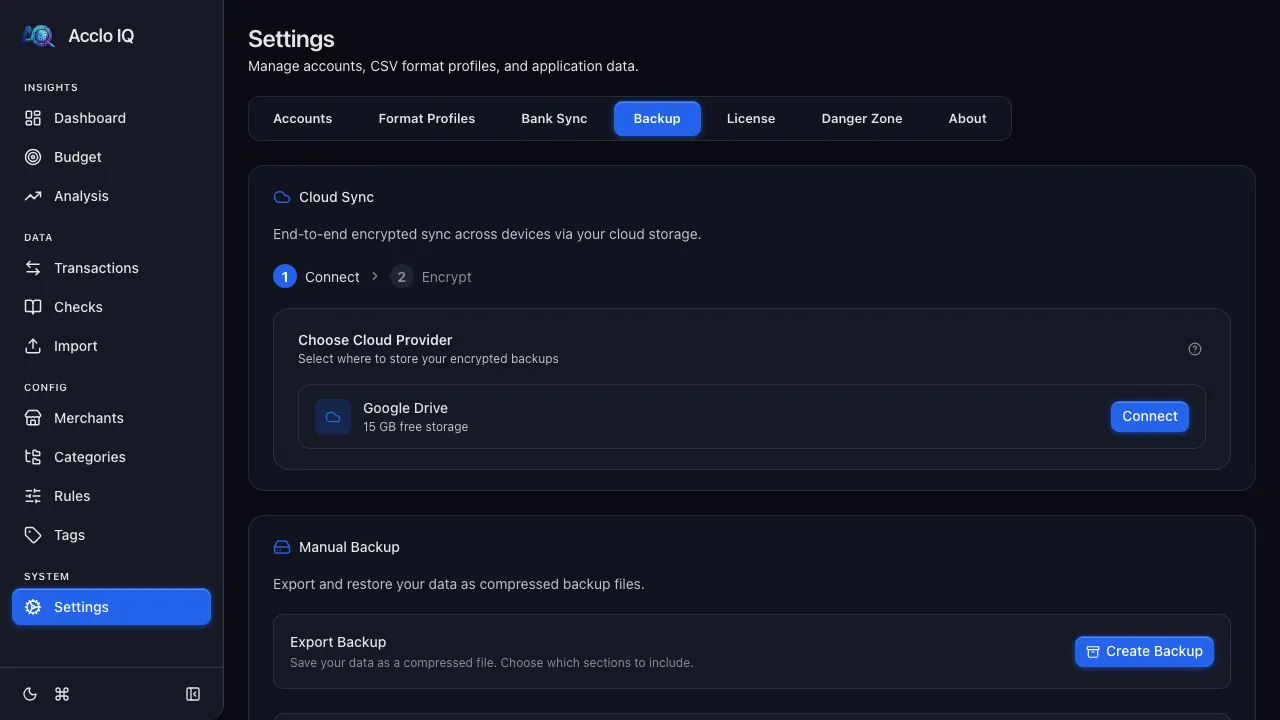
Creating a Backup
Section titled “Creating a Backup”- Go to Settings > Backup
- In the Manual Backup section, click Create Backup
- Select which data sections to include:
- Transactions
- Categories & Subcategories
- Merchants & Rules
- Accounts & Format Profiles
- Tags
- Check Register
- Receipts & Attachments (opt-in, can be large)
- Import History (opt-in)
- Budgets
- Recurring Transactions
- Sync Connections
- Click Export to download the backup file
Backups are saved as compressed .json.gz files.
Restoring a Backup
Section titled “Restoring a Backup”- Go to Settings > Backup
- In the Manual Backup section, click Select File and choose a
.jsonor.json.gzbackup file - The app validates the file and shows a preview with:
- Backup creation date and app version
- Available sections with row counts
- Your current data counts for comparison
- Select which sections to restore
- Choose a restore mode:
- Replace — clears the selected sections first, then restores from backup (clean slate)
- Merge — adds backup data alongside existing records (keeps both)
- Click Restore to apply
After restore, the rule engine re-runs to ensure all transactions are properly categorized.
Version Compatibility
Section titled “Version Compatibility”- Backups from older app versions restore with a warning (generally safe)
- Backups from newer app versions show a danger warning (may cause issues — update your app first)
- Create a backup before major changes (deleting categories, re-running rules, updating the app)
- Use Replace mode for a clean restore; use Merge when combining data from multiple sources
- Backup files are portable — you can restore on any platform (desktop or browser)
Frequently Asked Questions
Section titled “Frequently Asked Questions”How do I move Acclo IQ to a new computer?
Section titled “How do I move Acclo IQ to a new computer?”Create a backup on the old computer (Settings > Backup > Create Backup), copy the backup file to the new one, install Acclo IQ, then restore it (Settings > Backup > Select File) using Replace mode. Because backups are platform-independent, this also works when moving between the desktop app and the browser version. For ongoing multi-device use, Pro Cloud Sync keeps devices in sync automatically instead.
What’s the difference between Replace and Merge restore?
Section titled “What’s the difference between Replace and Merge restore?”Replace overwrites the sections you’re restoring with the backup’s data — use it when moving to a new device or recovering from a problem. Merge adds the backup’s records alongside what’s already there — use it when combining data from two sources. When in doubt for a clean migration, use Replace.
Are my receipts and rules included in a backup?
Section titled “Are my receipts and rules included in a backup?”Yes, if you select those sections. Rules and merchants are on by default; receipts and attachments are opt-in because they can make the file large. A full backup can include transactions, categories, merchants and rules, accounts and format profiles, tags, checks, budgets, recurring entries, and import history.
Related Guides
Section titled “Related Guides”- Cloud Sync — automatic encrypted sync across devices (Pro)
- Settings — other settings tab options
- Data Portability — export formats and migration details