
Accounts — Bank & Credit Card Setup
Overview
Section titled “Overview”Accounts represent the bank, credit card, cash, loan, or investment accounts that transactions belong to. Every CSV import and Bank Sync mapping targets one local account.
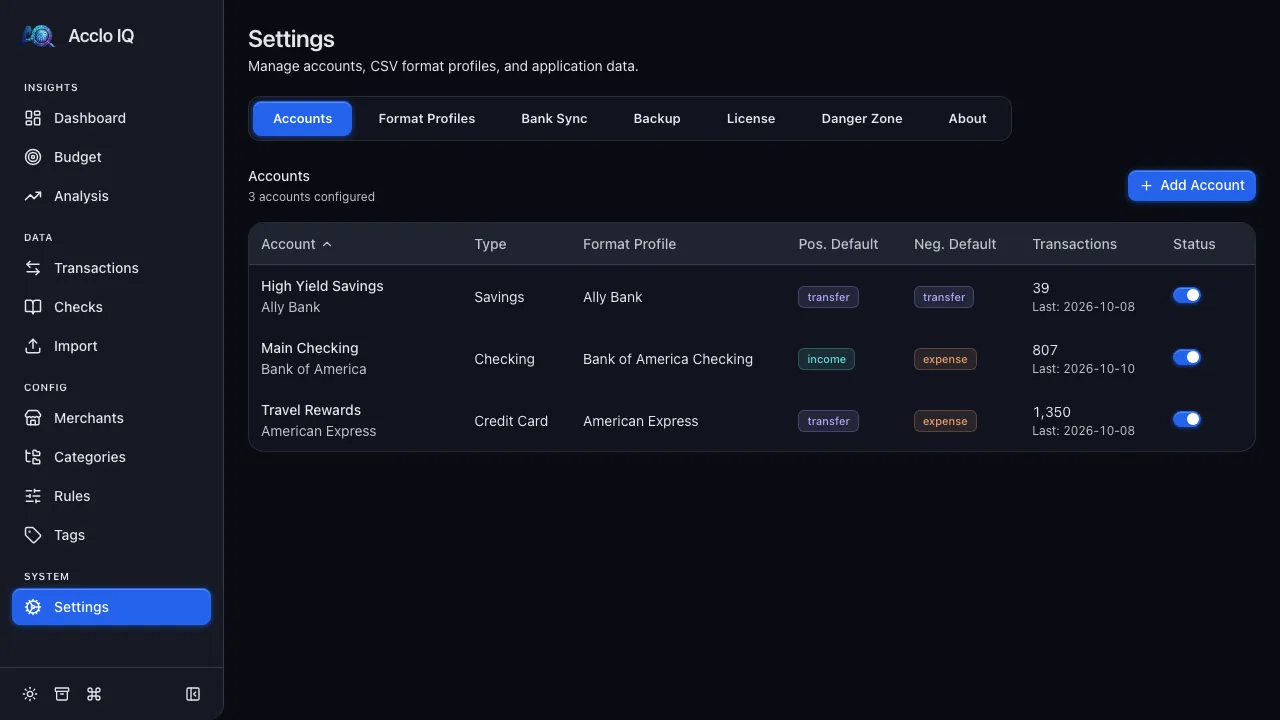
Account List
Section titled “Account List”Go to Settings > Accounts to review configured accounts. The table shows:
| Column | Description |
|---|---|
| Account | Account name and institution |
| Type | Checking, Savings, Credit Card, Investment, Cash, Loan, or Money Market |
| Format Profile | Last CSV profile used for this account |
| Pos. Default | Flow type used when an uncategorized positive amount imports |
| Neg. Default | Flow type used when an uncategorized negative amount imports |
| Transactions | Transaction count and most recent import date |
| Status | Active or inactive |
Inactive accounts stay in your database but are hidden from import and check register dropdowns.
Creating an Account
Section titled “Creating an Account”- Click Add Account or Add Your First Account
- Enter an account name and institution
- Select the account type
- Review the detected format profile, if one matches the institution
- Click Create Account
After creating an account, choose Done to return to Settings or Import CSV to go directly to the import flow.
Account Type Defaults
Section titled “Account Type Defaults”Account type controls how uncategorized transactions are classified before a merchant rule matches them. For example, a negative amount on a checking account is usually an expense, while a negative amount on a savings account is usually a transfer.
You can change the positive and negative defaults later by opening the account.
Format Profile Matching
Section titled “Format Profile Matching”When you enter an institution, Acclo IQ checks built-in format profiles for that bank. It first looks for a profile that matches both the institution and account type, then falls back to a generic institution profile when one exists.
If no built-in profile matches, leave the account without a profile and create a custom one during CSV import.
Editing an Account
Section titled “Editing an Account”Click an account to open it. You can update:
- Account name
- Institution
- Account type
- Last used format profile
- Active status
- Uncategorized flow defaults
For a Bank Sync account, use Manage bank sync to change its SimpleFIN link.
Deactivating an Account
Section titled “Deactivating an Account”Use the status toggle to deactivate an account without deleting its transactions. This is useful when an account is closed, temporarily over the Free tier account limit, or preserved after a downgrade.
Deactivated accounts keep their transactions. They’re hidden from the Dashboard, Transactions, Budget and Analysis until you turn the account back on. Exports still include them. They no longer appear in new import and check register pickers.
Deleting an Account
Section titled “Deleting an Account”Open an account and click Delete. If the account has transactions, the confirmation explains that those transactions will be permanently deleted.
For Bank Sync accounts, deleting the local account also sets the SimpleFIN mapping to Skip so future syncs do not recreate or update the deleted account.
Free vs Pro Limits
Section titled “Free vs Pro Limits”Free includes up to two active accounts. Pro supports unlimited active accounts. Existing data is preserved if you downgrade; accounts over the Free limit are deactivated rather than deleted.
Related Guides
Section titled “Related Guides”- CSV Import — import transactions into an account
- Format Profiles — map CSV columns for an account
- Bank Sync — sync SimpleFIN accounts into local accounts
- Licensing — account limits and downgrade behavior