
Bank Sync — SimpleFIN Auto-Import
Overview
Section titled “Overview”Bank Sync uses SimpleFIN Bridge to automatically pull transactions from your financial institutions into Acclo IQ without manual CSV exports. The Bank Sync feature is available on all tiers — Free is capped at two active accounts total (CSV and synced combined), Pro is unlimited.
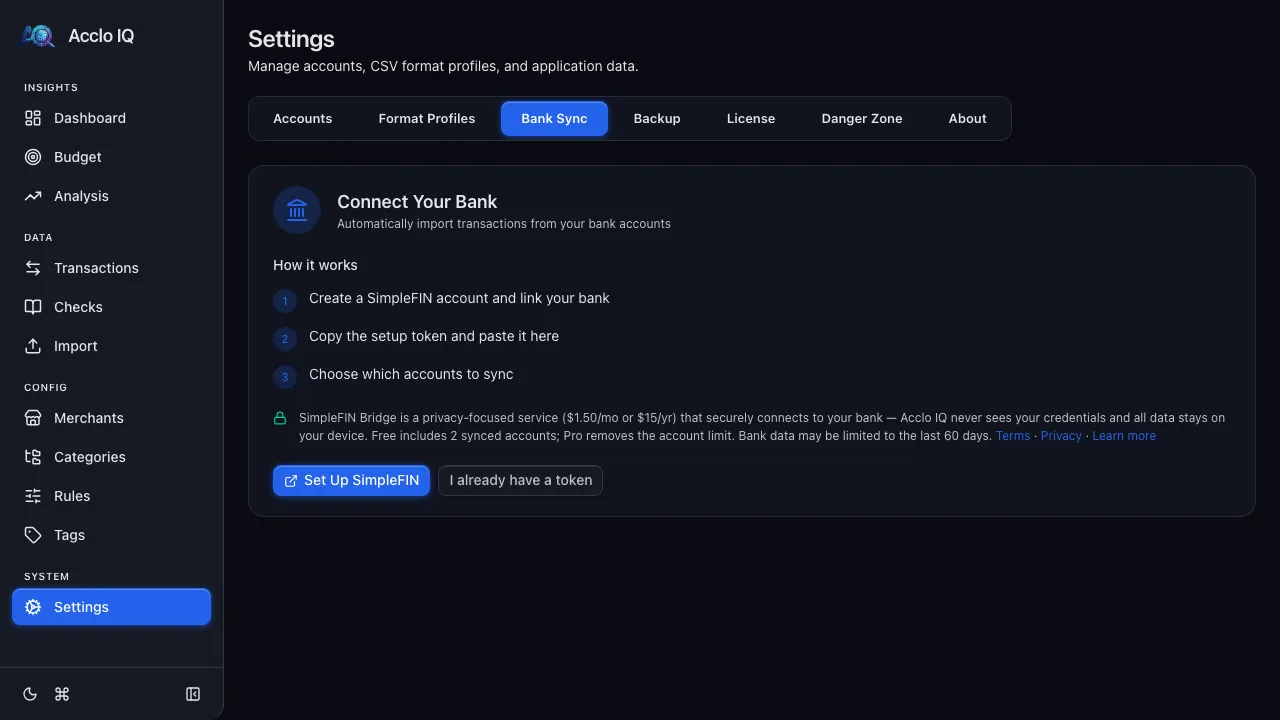
SimpleFIN Bridge is a third-party service ($1.50/month or $15/year, plus applicable tax, paid to SimpleFIN) that connects to your bank and provides a secure API for apps like Acclo IQ to read your transactions. SimpleFIN’s connection provider handles your bank login — it never touches SimpleFIN’s own servers, and Acclo IQ never receives your bank-login credentials. Acclo IQ keeps no copy of your synced transactions on any server; the imported copy (and your encrypted SimpleFIN access URL) is stored on your device. It supports thousands of banks and credit unions. Acclo IQ requests up to 90 days of history per sync. The history actually returned varies by institution, so use CSV import or backup exports when you need older transactions.
Setting Up Bank Sync
Section titled “Setting Up Bank Sync”Step 1: Get a SimpleFIN Token
Section titled “Step 1: Get a SimpleFIN Token”- Go to Settings > Bank Sync
- Choose your path:
- First time? Click Set Up SimpleFIN to open SimpleFIN Bridge. Sign up, connect your bank accounts in the SimpleFIN dashboard, go to the Apps section, click New connection, and copy the setup token
- Already have a setup token? Click I already have a token and skip ahead to Step 2 below
Step 2: Connect in Acclo IQ
Section titled “Step 2: Connect in Acclo IQ”- Paste the setup token into the Setup Token field
- Click Connect
- The app claims the token and fetches your available bank accounts
Step 3: Map Accounts
Section titled “Step 3: Map Accounts”For each bank account found by SimpleFIN:
- Toggle Active to enable syncing (or Skip to ignore)
- Choose to Create new account in Acclo IQ or map to an existing account
- Select the Account Type (Checking, Savings, Credit Card, etc.)
- Click Save & Start Syncing
A success screen confirms the connection. Click Done to finish setup.
Syncing Transactions
Section titled “Syncing Transactions”After setup, the Bank Sync section in Settings shows:
- Connection status — “Connected” badge with last sync time
- Sync Now button — manually trigger a sync at any time
- Bank Accounts — see which of your bank’s accounts sync into which Acclo IQ accounts, rename them, or pause syncing
Each sync pulls new transactions, deduplicates them against existing data, and runs the rule engine for auto-categorization.
For older history, import a historical CSV first, then use Bank Sync for ongoing updates.
Sync Results
Section titled “Sync Results”After syncing, a result message shows:
- New transactions imported — count of fresh transactions
- Duplicates skipped — transactions already in your database
- Paused accounts skipped — bank accounts whose Acclo IQ account is turned off are skipped until you turn it back on
- Uncategorized — transactions that didn’t match any rule
Deduplication
Section titled “Deduplication”Bank Sync uses the same deduplication logic as CSV import. If you import the same transaction via both CSV and Bank Sync, the duplicate is detected and skipped. Cross-source duplicates can be reviewed on the Transactions page via View > Copies.
Disconnecting
Section titled “Disconnecting”Click Disconnect in the Bank Sync section to remove the SimpleFIN connection. Your existing synced transactions are preserved — only the connection is removed.
Next Step
Section titled “Next Step”Ready to connect your bank? Start right in your browser — no install required:
Launch Web AppRelated Guides
Section titled “Related Guides”- CSV Import — manual alternative to Bank Sync
- Rules Engine — auto-categorize synced transactions
- Transactions — view and manage all transactions
- Licensing — Free and Pro account limits