
Quick Start — Zero to Dashboard in 5 Minutes
This is the fast-track version. For a more detailed walkthrough with screenshots of every step, see the Onboarding guide.
From Zero to Dashboard
Section titled “From Zero to Dashboard”-
Install or open the app
Download Acclo IQ for macOS, Windows, or Linux. Or open the browser version — no install required. Click Get Started on the welcome screen.
-
Create an account
Go to Settings > Accounts > Add Your First Account. Enter a name (e.g., “Chase Checking”), your bank name, and select the account type. Click Import CSV when done.
-
Import a CSV from your bank
Select the format profile that matches your bank — auto-detected for major banks. If yours isn’t listed, click Create a new format profile and upload a sample CSV so the app can detect the columns. Then upload your full CSV. The app previews the transactions, flags duplicates, and shows you what’s new. Click Import N Transactions to confirm.
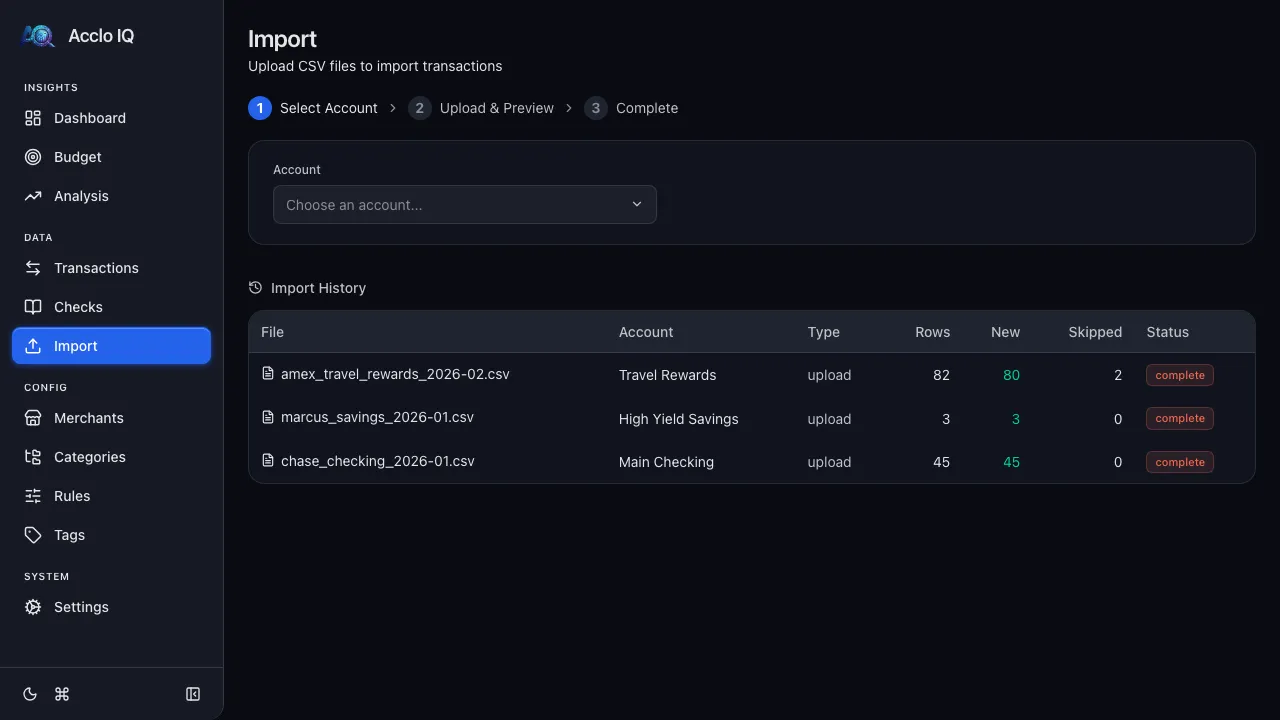
-
Check your dashboard
Go to Dashboard. Your spending summary, trend charts, and category breakdowns are ready — the rule engine categorized your transactions automatically.
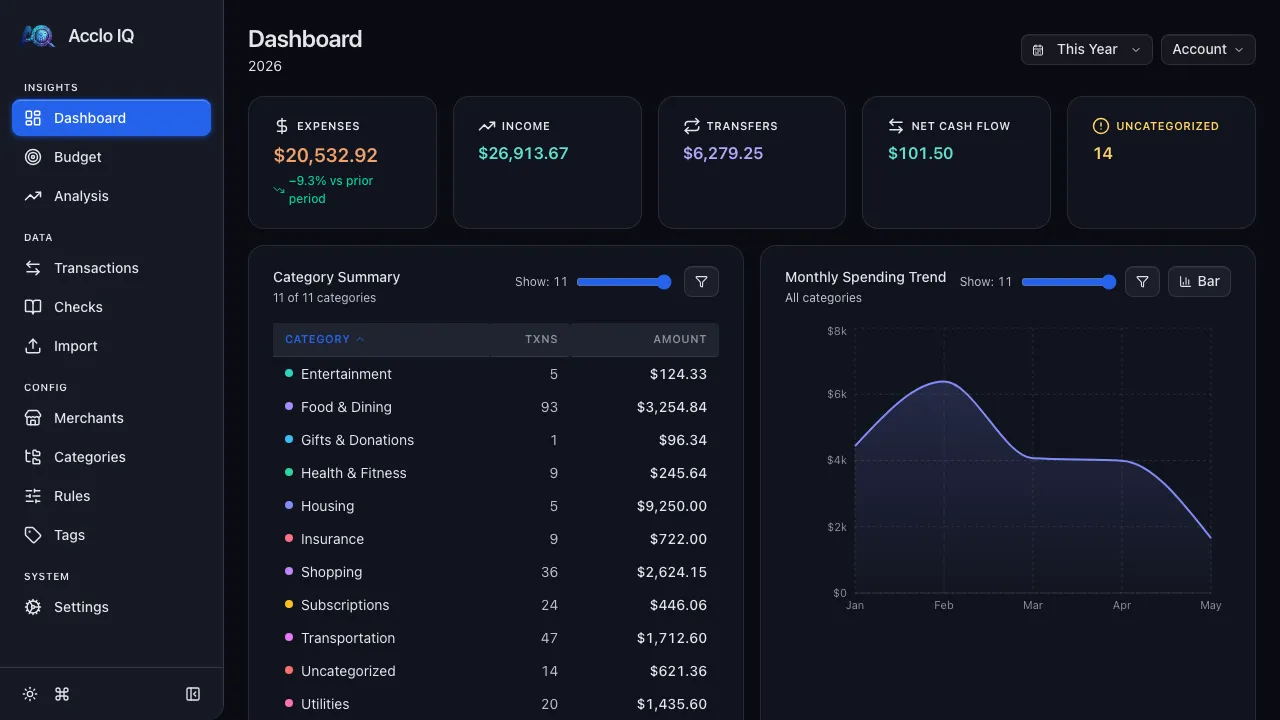
-
Fix anything the engine missed
Open Transactions, click any miscategorized row, and fix the merchant or category in the detail panel. Click the magic wand to create a rule so it’s automatic next time.
Keep Going
Section titled “Keep Going”| What | Where | Tier |
|---|---|---|
| Set monthly spending targets | Budgets | Free |
| Create rules for missed merchants | Rules Engine | Free |
| Auto-detect subscriptions | Recurring | Free |
| Connect your bank for auto-import | Bank Sync | Free |
| Sync across devices | Cloud Sync | Pro |
| Export and back up your data | Backup & Restore | Free |
Related Guides
Section titled “Related Guides”- Onboarding — the same setup with screenshots of every step
- CSV Import — deeper detail on importing and deduplication
- Rules Engine — automate categorization for merchants the engine missed
- Dashboard — understand the KPIs and charts you just generated